

Key Takeaways
How Many Devices Are Actually on Your Network?
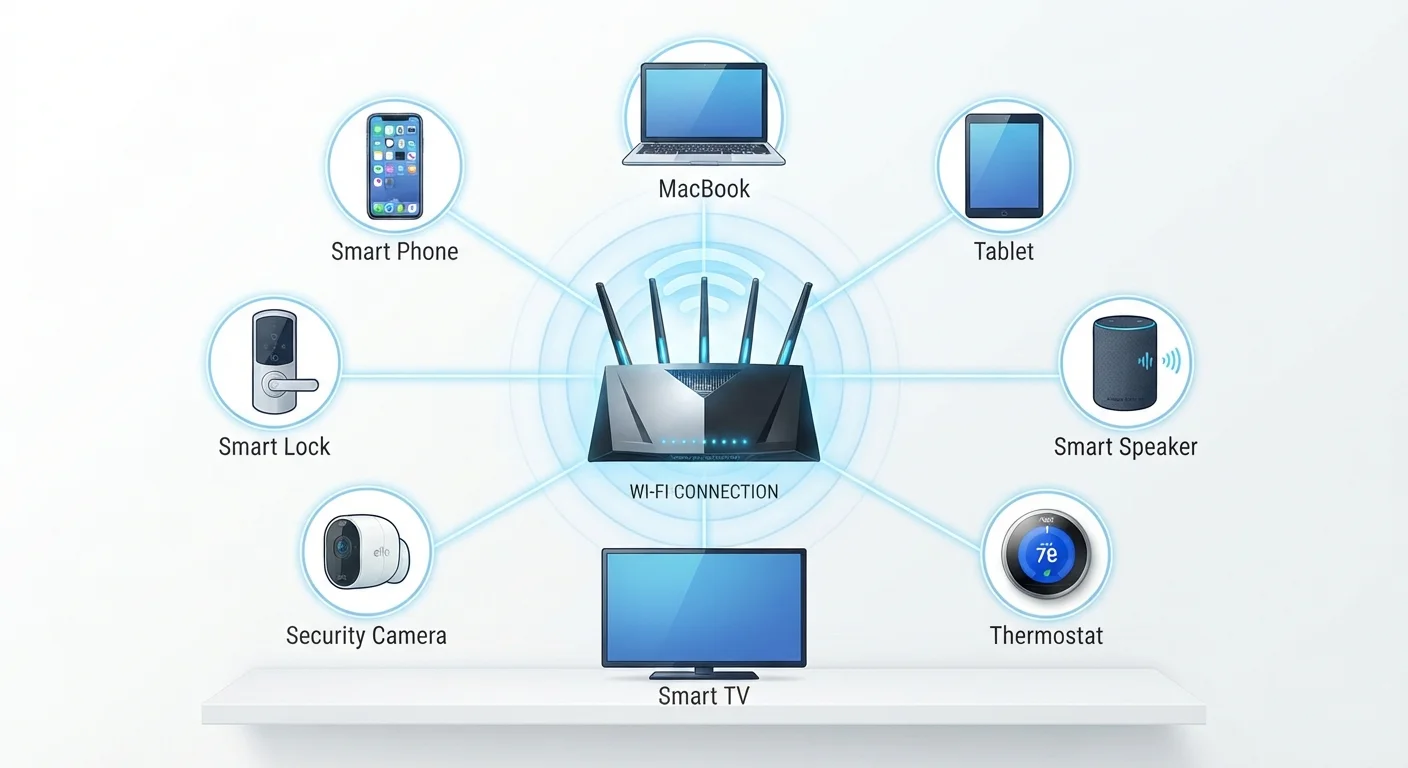
If you guessed five or ten devices, you're probably low. According to industry research, the average U.S. household had more than 20 connected devices as of recent years — and that number continues to climb as smart home technology becomes standard. Most households accumulate devices gradually: a new TV here, a smart thermostat there, a few voice assistants, a couple of gaming consoles. Before long, the router is managing a small fleet.
The problem is that most people don't have a clear picture of what's on their network at any given moment. Devices connect automatically, former residents' devices sometimes linger, and smart appliances often connect without any visible indication. Getting that picture isn't just useful trivia — it has direct implications for performance and security.
20+
Average connected devices per U.S. household
Industry research from network equipment manufacturers and consumer surveys consistently places the average American household above 20 connected devices.
3×
Growth in household device count over a decade
Analysts tracking smart home adoption estimate the average household device count has roughly tripled since the early 2010s.
57%
IoT devices with known high-severity vulnerabilities
A Palo Alto Networks threat intelligence report found that more than half of IoT devices have high-severity security vulnerabilities.
The Full Roster: Every Category of Device That Connects
Think beyond phones and laptops. Here's a more complete breakdown of what typically ends up on a home network:
- Computers and mobile devices: Laptops, desktop PCs, smartphones, tablets — these are the obvious ones. Each household member likely adds two or three.
- Streaming and entertainment: Smart TVs, streaming sticks, gaming consoles, Blu-ray players, and set-top boxes all connect to pull down video and software updates.
- Voice assistants and smart speakers: These maintain a persistent connection to cloud services even when idle.
- Smart home controllers: Thermostats, smart lighting systems, door locks, video doorbells, and security cameras. For a deeper look at how these connect, see the wireless protocols behind smart devices.
- Appliances: Refrigerators, washing machines, robot vacuums, air purifiers, and even some microwaves now include Wi-Fi radios.
- Network infrastructure: Wi-Fi extenders, mesh nodes, and smart switches themselves appear as connected devices.
- Wearables and IoT accessories: Smartwatches syncing health data, connected baby monitors, and pet trackers round out the list.
Each of these categories has grown substantially in recent years, and manufacturers rarely advertise network connectivity as prominently as other features.
How to See What's Connected Right Now
Your router's admin interface is the most reliable place to check. Access it by typing your router's default gateway IP address (commonly 192.168.1.1 or 192.168.0.1) into a browser address bar. Log in with your admin credentials — often printed on a label on the router itself if you haven't changed them.
Once inside, look for a section labeled Connected Devices, DHCP Client List, or Device Manager, depending on your router's firmware. You'll typically see each device's hostname, IP address, and MAC address (a unique hardware identifier).
Rename devices in your router's admin panel to something recognizable as soon as you connect them. A label like 'Living Room TV' is far easier to audit than a random MAC address string six months later.
Unrecognized device names are the primary reason people miss unauthorized connections during routine network audits.
Check your DHCP lease table rather than just the active device list — some routers only show currently connected devices, while the lease table reveals devices that connected recently but aren't active right now.
Intermittently connected devices, like a neighbor's device that briefly joined your open network, may not appear in a real-time view but will show up in the lease history.
Many modern routers also offer companion apps — these often display device lists in a more readable format and can send alerts when a new device joins. Third-party network scanner apps on a smartphone or computer can serve the same purpose if your router's interface is limited.
As you review the list, watch for unfamiliar names. Device hostnames can be cryptic (a phone might appear as a string of letters and numbers), so cross-referencing MAC addresses with known devices takes patience but pays off.
Why the Device Count Affects Network Performance
A router divides its available bandwidth among all connected devices. More devices means more competition for that shared resource — especially during peak usage hours when multiple people stream video, join video calls, or run software updates simultaneously.
Beyond raw bandwidth, every device that actively communicates generates radio traffic. On crowded 2.4 GHz networks in particular, interference from neighboring networks and from the sheer volume of devices can degrade speeds and increase latency. If you're experiencing slow connections or dropped signals, persistent Wi-Fi dead zones may point to device congestion as much as physical obstacles.
Older devices are especially worth scrutinizing: a decade-old laptop connecting via an outdated Wi-Fi standard can slow down the entire network for all other devices on the same band. Many routers allow you to identify connection type (Wi-Fi 4, Wi-Fi 5, Wi-Fi 6) per device in the admin panel.
Security Implications of a Crowded Network
Every device on your network is a potential entry point. A poorly secured smart plug or an older camera running outdated firmware presents a vulnerability that could be exploited to access other devices on the same network. This risk scales directly with device count.
Unsecured IoT Devices Are High-Value Targets
Many smart home devices ship with default credentials that are publicly documented and never changed by consumers. Attackers scan for these devices systematically. Changing default usernames and passwords immediately after setup — and keeping device firmware updated — is among the most effective protections available to ordinary households.
One practical mitigation is network segmentation. Running smart home devices on a dedicated guest network, separate from computers and phones, limits how far an attacker can move if one device is compromised. Setting up a guest Wi-Fi network is straightforward on most modern routers and is one of the higher-impact steps an ordinary household can take.
For a broader set of practical habits, home network security habits covers the fundamentals without requiring a technical background.
Practical Steps to Manage Your Connected Devices
Managing a crowded network doesn't require advanced technical skill. A few deliberate habits make a significant difference:
- Audit quarterly. Run through your router's device list every few months. Remove devices you no longer own or use by revoking their network access or simply changing your Wi-Fi password if the list has grown unmanageable.
- Keep firmware current. Router firmware updates patch known vulnerabilities. Most modern routers can apply updates automatically — enable this option if available.
- Segment by device type. Use your router's VLAN or guest network feature to separate IoT devices from personal computers and phones.
- Check for orphaned devices. Devices from previous residents, old phones traded in but still connecting via saved passwords, or smart appliances from a prior owner may be silently active.
- Consider your infrastructure. If your device count has grown substantially, a mesh network vs. a Wi-Fi extender comparison can help you decide whether your current hardware is still adequate.
If you're building out a connected home from scratch, setting up a smart home in the right order helps you avoid the common mistake of adding devices faster than your network infrastructure can support them.